How to Report a
Suspicious Email
There is a new button in your Outlook toolbar. If an email looks wrong, two clicks sends it directly to our security team. No ticket, no phone call, no waiting to hear back.
In a hurry? Do this:
Click the suspicious email once. Click the Bondgate IT button in the toolbar. Click Yes please. That is the whole job.
You do not need to work out whether an email is genuinely dangerous. That is our job. If something makes you pause, report it. Nobody has ever been in trouble for reporting an email that turned out to be fine.
Outlook Integration
What you are looking for
The button was added by us. There is nothing for you to install and nothing to set up. If you use Outlook on more than one computer, it will appear automatically on each of them.
If you noticed a new button appear and wondered whether it was safe, that is exactly the right instinct. This one is ours.
Simple Process
Reporting an email in four steps
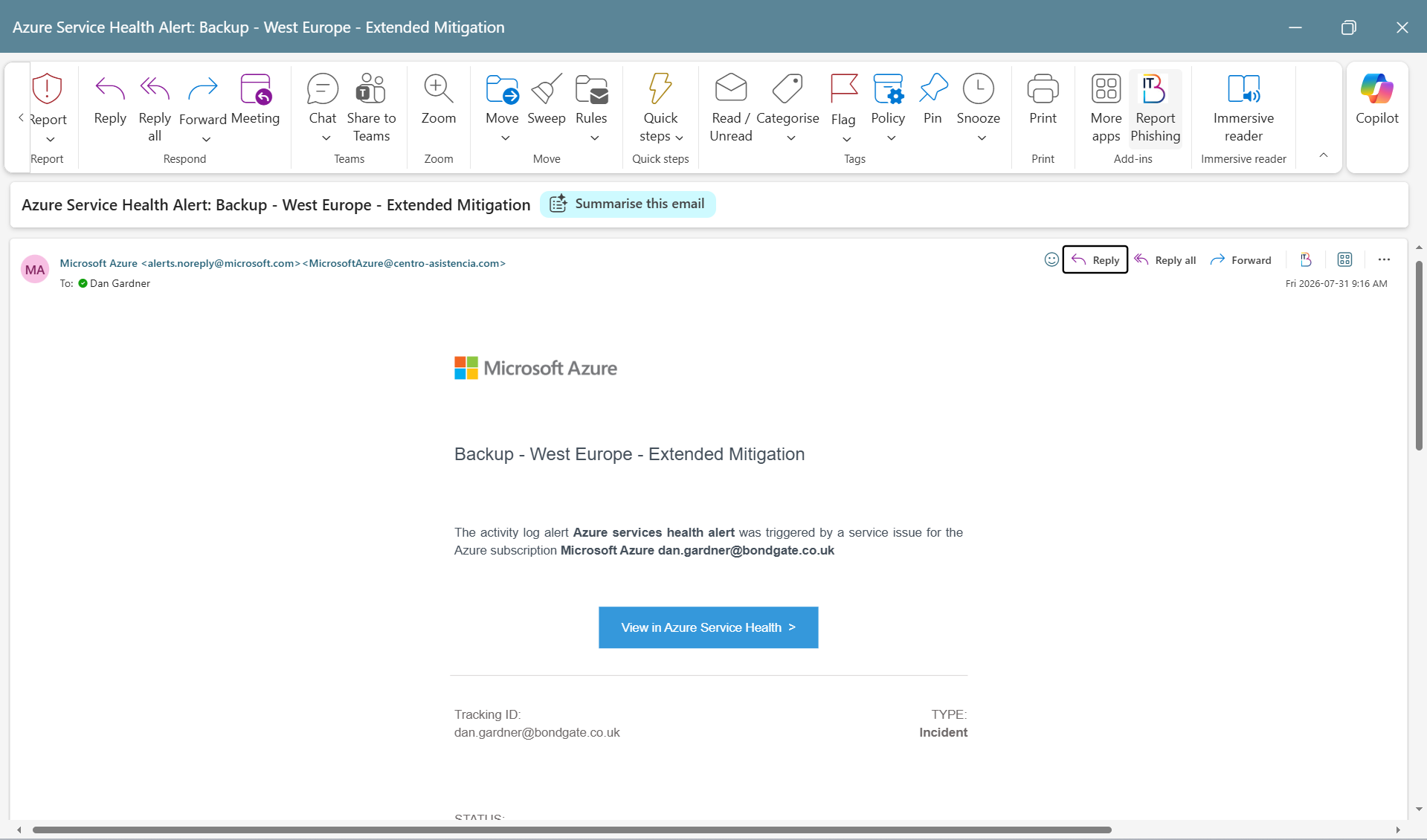
Start with the suspicious email open, or selected in your inbox list.
Select the email
Click once on the email you are unsure about, or open it. Do not click any links, open any attachments or scan any codes inside it first.
Click Report Phishing
Find the Bondgate IT button in the toolbar along the top and click it. On a smaller screen you may need to click the three dots to see it.
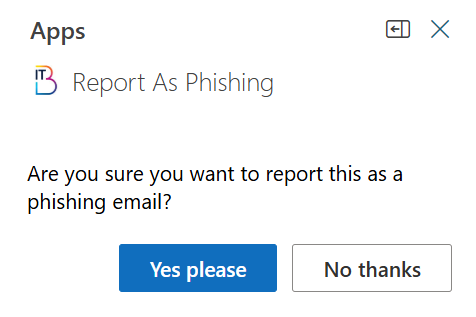
Confirm
A panel opens on the right and asks whether you are sure. Click Yes please. This step is only there to catch accidental clicks.
Close the panel
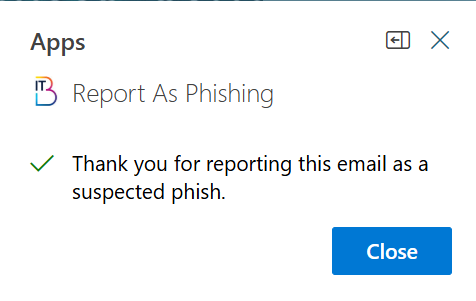
A short message confirms the report has gone through. Click Close and carry on with your day. There is nothing else to do.
Please do not forward it
Sending a suspicious email on to a colleague to ask whether it is real puts a second person in front of the same links. Use the button instead — we will see everything we need.
System Responses
The two messages you might see
Once you have confirmed, one of two short messages appears. Both mean the same thing to you: job done.
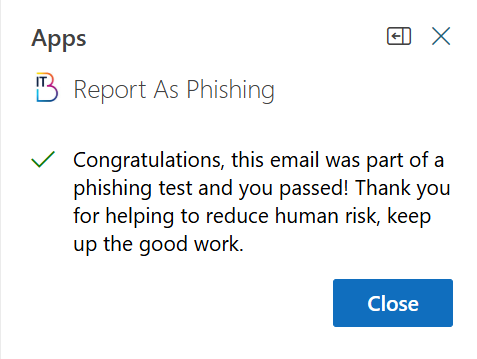
You spotted a practice email
From time to time we send out safe practice emails designed to look like the real thing. Report one of those and the panel tells you straight away, with a well done. Take the win.
You reported a real email
For anything else, you get a simple thank you. The email goes to our team and to the mail filtering system for a closer look. You do not need to chase it up.
Decision Checklist
When to use it, and when not to bother
Worth Reporting
- Anything pretending to be a person or company it is not.
- Anything asking you to sign in, confirm a password or hand over card details.
- Requests to change bank details, pay an invoice you were not expecting or buy gift cards.
- Unexpected attachments, links or QR codes.
- Anything that makes you pause, even if you cannot say why.
No Need to Report
- Ordinary marketing email from a real company you have heard of. Use their unsubscribe link instead.
- Newsletters you signed up for and no longer want.
- Anything already sitting in your Junk folder. It has been caught, so you can leave it there.
- Internal emails you simply disagree with. We cannot help with those.
💡 Rule of thumb: If you are torn between the two lists, report it! Getting it wrong in that direction costs nothing.
Device Compatibility
Where the button works
Outlook on Desktop & Web Browser
The button appears in both desktop Outlook and web browser access. On a narrow window, it may be hidden behind the three dots at the end of the toolbar.
Outlook on Mobile & Tablet
The button is not available on phones or tablets. If you spot something on your phone, leave the email alone and report it from your computer later.
📱 Away from your desk and looks urgent? Take a screenshot and send it to the service desk. Do not click anything inside the email.
Shared & Team Mailboxes
Reporting works exactly the same way from a shared mailbox such as accounts, info or enquiries. Select the email in the shared mailbox and use the button as normal.
Shared mailboxes are worth extra care because their addresses are public and receive higher spam volumes. If two colleagues report the same email, that is not a problem.
What we see when you report
Only the email you reported is sent to us, along with the technical headers hidden behind it that show where it really came from. Nothing else in your mailbox is opened, read or copied, and the button does nothing at all until you press it.
We use what you send to block the sender for everyone else in the business. One person reporting early often stops the same email reaching thirty colleagues an hour later.
If you think you have already clicked something
Tell us straight away. Speed matters far more than getting it right first time, and there is no telling off waiting at the other end. The sooner we know, the smaller the problem tends to be.
Report the email using the button.
Contact the service desk and say what happened, including roughly when.
If you entered a password anywhere, change it and tell us which one.
Leave your computer switched on and connected unless asked otherwise.
Do not spend twenty minutes working out whether it was serious first. That is the part we are good at.
Red Flags Guide
How to spot a suspicious email
Most of them give themselves away if you slow down for ten seconds. Here is where to look.
Check the sender properly
- •The display name shown at the top can say anything. Hover or click to reveal the actual email address behind it.
- •Look at the part after the @ symbol. A message claiming to be from Microsoft coming from an unrelated domain is suspicious.
- •Watch for near misses: swapped letters, extra characters, or extra hyphens.
- •If it claims to be from a colleague but uses a personal address, verify with them through a secondary channel.
Look at what it wants you to do
- •Extreme urgency, threat of account deletion, or penalty if you do not act today.
- •Asking you to sign in, confirm credentials, or re-enter credit card details.
- •Requests to change bank details for a supplier or payroll.
- •Senior executive asking for gift cards, urgent wire transfers, or moving to WhatsApp.
Links, attachments and codes
- •Hover your mouse over a link without clicking. Compare the real URL in the tooltip with the text displayed.
- •Be cautious with unexpected attachments, especially those asking to enable macros or editing.
- •Treat QR codes with extreme caution — scanning takes you outside company security protection.
Trust the feeling that something is off
- •Unusual greetings or unusual tone for that contact.
- •An email out of the blue regarding an invoice or account you do not recognize.
- •Replies injected into an existing thread from a slightly altered email address.
Useful Test: Would you be comfortable ringing the sender on a known trusted number to verify? If no, hit Report Phishing.
Help & Clarifications
Common Questions
Quick Summary
The short version
Do not click anything inside the email, and do not forward it.
Report Phishing, then Yes please.
No ticket needed, no follow up needed.
Tell the service desk now. No blame, ever.
Last updated: July 2026 · Owner: Bondgate IT service desk · Changes: added guidance for mobile, shared mailboxes and QR codes.
Test Your Knowledge: Phishing Quiz
Can you spot the subtle clues in these real-world email scenarios? Test your awareness and learn what red flags to watch for in your inbox.
Scenario 1: Urgent Security Alert
Your Microsoft 365 password expires in 24 hours. Failure to update your credentials immediately will result in complete account suspension and loss of email access. Click the link below to verify your current password.
https://login-micros0ft-update.auth-portal-verify.ru/loginWhat is your verdict on this email?