
Bondgate IT - User Guides
Multi Factor Authentication (MFA)

Our guides
MFA - Multi Factor Authentication
Level up your online security! Multi-Factor Authentication (MFA) adds an extra verification step beyond passwords, making it much harder for hackers to steal your information, even if they get your password.
What is Multi-Factor Authentication (MFA)?
Multi-factor authentication (MFA) is an effective control against a wide range of account compromise techniques, stopping simple attacks altogether and making it much more difficult for even sophisticated attackers to succeed. In addition to their email address and password, users will need to set up a second form of authentication, such as an authentication app on their mobile phone, text message or phone call. This second layer of security is designed to prevent anyone but them from accessing their account, even if they know their password.
What are the steps for a user to set up MFA?
Follow the steps below to enrol in MFA:
Step 1: On a laptop or desktop go to My Sign-Ins | Security Info | Microsoft.com and log in with your Microsoft 365 account
Step 2: On the security info tab, click add sign-in method
Step 3: Select Authenticator app from the drop-down list - add
Step 4: A new pop up will appear, follow the onscreen steps to download the authenticator app to your mobile device (mobile device required for this step)
Once the steps to install the app have been followed on your mobile, return to the laptop/PC and follow the prompts until this is completed
Repeat step 2 to choose a new method but this time select phone (if phone is already registered this will show on your tab
Enter your phone details and follow the prompts same as before An SMS code will be sent to your chosen mobile Enter this code into the pop-up box on the laptop/pc.
Note: Now that MFA is enabled on the account the authentication method (Mobile app, call or text message) requires to be set up. Please, select the method and follow the steps.
What are user’s options for MFA?
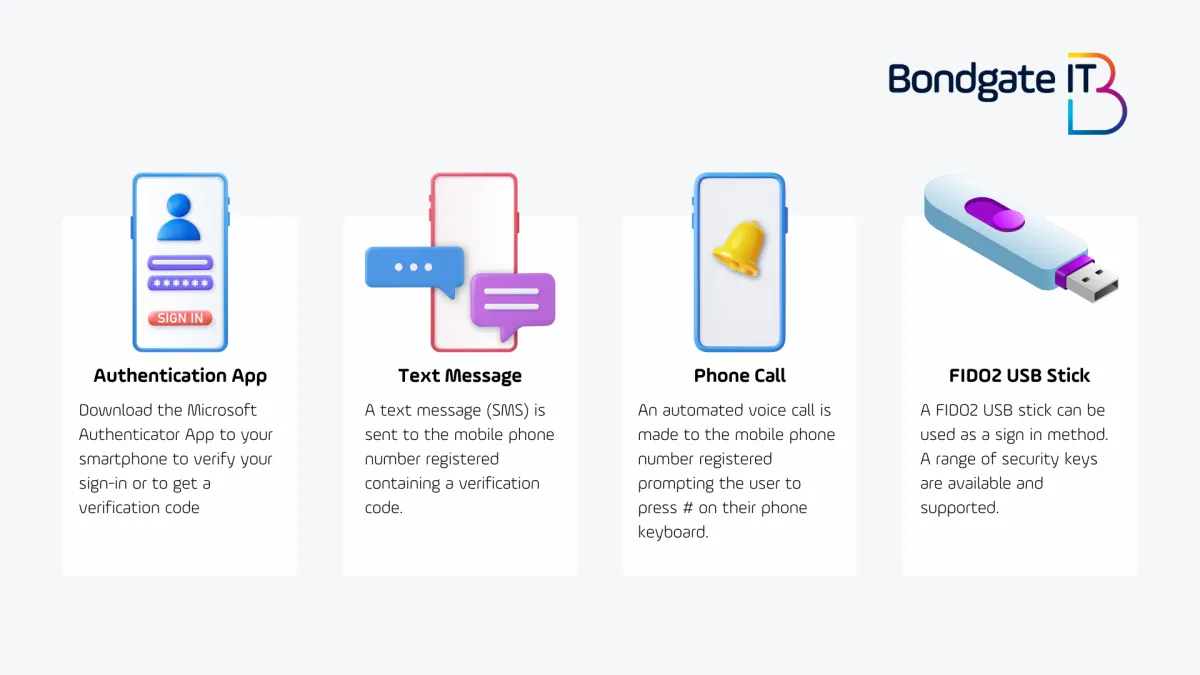
Users can choose between the Microsoft Authenticator app, text messages, or call.
Users should be encouraged to register more than one authentication method to ensure they never lose access to their account, even if something happens to their device.
Authentication App: Download the Microsoft Authenticator app to your smartphone to verify your sign in or to get a verification code.
Text message: A text message (SMS) is sent to the mobile phone number registered containing a verification code.
Call: An automated voice call is made to the mobile phone number registered prompting the user to press # on their keypad.
Users should enable MFA using mobile app, text message or phone call in addition to using a FIDO2 Token for security purposes.
If using a FIDO2 Token in addition to another MFA option, users won’t be challenged for MFA.

How can you get extra support
The Bondgate IT team are always here to help you if you get stuck. You can call us on 01325 369 950 or click the button below to access our client portal.
The Bondgate IT Client Portal is a one stop shop that allows you to access:
Ticket updates
Create new tickets
Close tickets
Order new equipment

A word from Our Clients



© Copyright 2024. Bondgate IT. All rights reserved.